
How to Add a Store Locator to Shopify
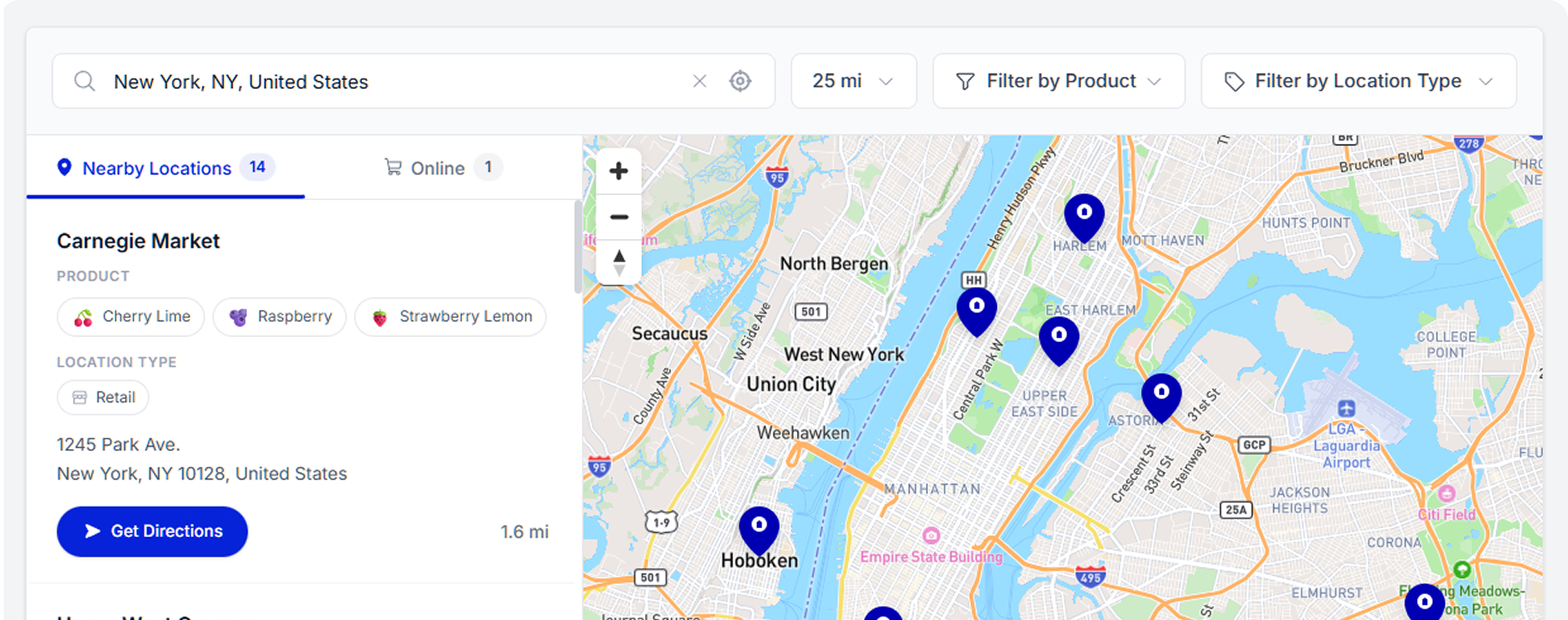
Add a store locator to your Shopify store in minutes. No app required — just embed Pinbly's lightweight widget and connect your online and physical stores.

Shopify is the go-to platform for e-commerce, but if your brand also has physical retail locations, you need a way to connect your online presence with your brick-and-mortar stores. A store locator bridges that gap.
Why Shopify Stores Need a Locator
More than 70% of shoppers who do a local search visit a store within 24 hours. If you sell online and in-store, a locator helps customers find your physical locations when they want to see, try, or pick up products in person.
Common use cases for Shopify + store locators:
- Retail brands with flagship and partner stores
- CPG brands showing where their products are stocked
- Franchise businesses with dozens or hundreds of locations
- Pop-ups and seasonal locations
Setting Up Pinbly on Shopify
Pinbly integrates with Shopify in just a few steps. No app installation required — it works through a simple embed.
1. Create Your Locator
In your Pinbly dashboard, set up your locations with all the details: addresses, hours, contact info, and any custom attributes your customers care about.
2. Customize the Design
Match the locator to your Shopify theme. Pinbly supports custom colors, fonts, map styles, and layout options so it feels like a natural part of your store.
3. Add to a Shopify Page
In your Shopify admin, go to Online Store > Pages and create a new page (or edit an existing one). In the page content, click the HTML editor (</> button) and paste your Pinbly embed code.
Save the page, and your store locator is live.
4. Add to Navigation
Don’t forget to add the page to your site navigation so customers can actually find it. Go to Online Store > Navigation and add a “Store Locator” or “Find a Store” link to your main menu.
Pro Tips for Shopify Locators
- Link from product pages — Add a “Find in Store” link on product pages to drive foot traffic
- Use custom filters — Let customers filter by product availability, services offered, or store type
- Track conversions — Use Pinbly’s analytics to see which locations drive the most “Get Directions” clicks
Conclusion
If your brand exists both online and offline, a store locator isn’t optional — it’s essential. Pinbly makes it dead simple to add one to Shopify without installing another app or slowing down your store. Try it free and see how it works.
Related Articles
You Don’t Need a Developer to Build a World-Class Store Locator
The biggest limiting belief in the multi-location world: "We need a developer to build a proper store locator."…
 Pinbly Team
·
Pinbly Team
·
How to Add a Store Locator to Your Website in Under 5 Minutes
Learn how to set up a fully branded store locator on any website platform in under 5 minutes…
Pinbly Team
·
How to Add a Store Locator to WordPress (Without a Plugin)
Skip the bloated plugins. Learn how to embed a fast, fully customizable store locator on your WordPress site…
Pinbly Team
·